Four teams that run delivery on it
Interiors, software services, a CA firm and an event company.
An interior design firm with nine live sites
Each site is a project with a budget and a due date. Tasks move through Design, Procurement, Execution and Handover. The site supervisor attaches a photo from the phone and ticks the checklist; the owner sees nine progress bars on one screen and the two that are red.
A 20-person software services company
Projects are opened from orders, so the budget is the contract value. Developers run timers on tasks. At month end, estimated against actual hours tells the delivery head which fixed-price project is quietly losing money.
A CA firm with 120 clients and recurring work
Each client’s GST filing is a project with the same task type and the same checklist, created from the client record. The partner filters by due date on the 8th and sees what is still in Documents Awaited.
An event company
One project per event, with a task type for vendors that has its own fields: advance paid, balance due, contact. Delivery rating from the client goes on their record for next year.
What can EzNxT Projects do for a delivery team?
Three things a project manager needs every day: what is due, who is on it, and what it is costing.
Tasks, stages and checklists
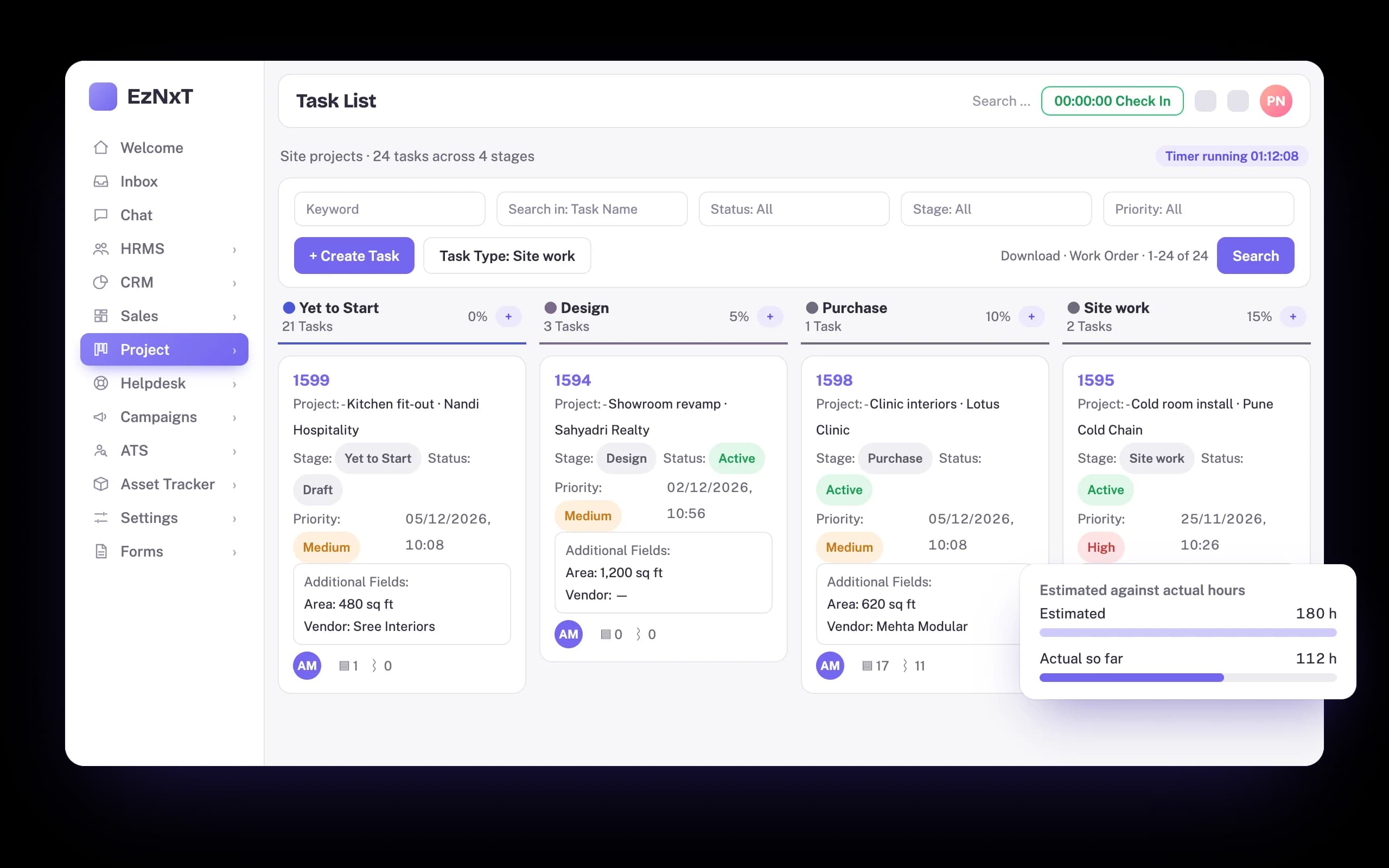
Work is a list of tasks with owners and dates, shown as a board by stage. Checklists make “done” mean the same thing to everyone.
Board by stage
Tasks move across stages you name and reorder. Filter by owner, type, priority or due date.
Task types with custom fields
A site visit needs a date and a location; a vendor task needs an advance amount. Define the fields once per type.
Checklists
Items to tick inside a task, with who ticked them and when.
Comments, attachments and history
Discuss on the task, attach drawings or photos, and see every stage change and edit in the task’s history.
Priorities and due dates
High, medium, low; due dates per task; overdue items sort to the top.
Budgets, hours and progress
The project screen answers “are we on track?” with numbers rather than a status meeting.
Budget and payments
The order value is the budget; payments received show against it, so delivery knows the advance arrived.
Estimated vs actual hours
Estimate on the project, actuals from the time logs, the difference in plain sight.
Timers and time logs
Start and stop a timer on any task, or log hours with a note. Each log keeps start, end and duration.
Completion percentage
Progress on each project and across all of them, with the ones running late easy to spot.
Task reports
Hours by person, by task and by project, downloaded as Excel or PDF.
Clients, delivery and documents
The project is one chapter in the client’s record, and the paperwork comes out of it.
Linked to the client and the order
Open a project from a CRM client or a sales order; the contact and the commercials are already there.
Delivery rating and feedback
On delivery, the client rates the work and comments. It shows on their CRM record and in the project’s feedback history.
Work order download
A printable work order from the project for the client or the site team.
Members and groups
Add people or whole groups to a project; access follows roles, so a contractor sees only their project.
Why do small teams run projects in EzNxT?
Less planning theatre, more knowing what is due and whether it is paid for.
Unlimited projects
Open a project for every client, every site, every event.
The project knows its client and its budget
Open it from the order, and the contract value is the budget. Estimated hours sit next to actual hours from the timers, so a fixed-price job cannot quietly go over.
Stages you name, checklists that define done
To Do, In Progress, Review, Done, or Design, Procurement, Execution, Handover. Each task carries a checklist; the stage changes and edits stay in its history.
Time logged where the work is
Start a timer on the task, from a laptop or the phone, or log hours afterwards with a note. No separate timesheet app, no Friday reconstruction.
Clients rate what you deliver
When the project is delivered, the client leaves a rating and a comment. It sits on their CRM record, next to the next quotation.
Works from a site, not only a desk
The Android and iOS apps show the board, take a photo as an attachment, tick checklist items and run the timer.
EzNxT Projects against Monday.com, Asana and ClickUp
The big three are excellent at planning. The question is what a 10-person services firm pays for, and uses.
| EzNxT Projects | Monday.com | Asana | ClickUp | |
|---|---|---|---|---|
| Free plan | 10 users, unlimited projects | 2 seats | 2 users (Personal) | Unlimited users, 60 MB storage, limits on views and automations |
| Paid plan starts at | See the pricing page | $9 per seat a month, annual, minimum 3 seats (Basic) | $10.99 per user a month, annual (Starter) | $9 per user a month, annual (Core) |
| Time tracking with a timer | Included | Pro plan and above | Advanced plan and above | From Core |
| Gantt and dependencies | No | Standard plan and above | Starter and above | From Core |
| Project tied to a client, order and payment | Yes, same login | Via CRM product or integration | Integration | Integration |
| Client delivery rating on the client record | Yes | No | No | No |
| Priced in | Rupees | US dollars | US dollars | US dollars |
From each vendor’s public pricing page in November 2026. Feature-tier rows reflect the plan on which the vendor lists the feature; check current pages before you decide. Sources: Monday.com pricing, Asana pricing, ClickUp pricing.
Who EzNxT Projects is for, and who needs a heavier tool
For teams that deliver work to clients and want to know what is due, who is on it, and whether the hours are within budget.
A good fit if
- Agencies, consultancies and IT services firms delivering client projects
- Teams of 3 to 50 who manage work in WhatsApp groups and a shared sheet today
- Businesses that want the project tied to the client, the order and the payment
- Managers who want hours logged without buying a separate timesheet tool
- Field teams that need to attach a photo and tick a checklist from a phone
Look elsewhere if
- Programme management with Gantt charts, dependencies and critical paths
- Software teams that need sprints, story points and Git integration
- Companies that need automatic timesheet-to-invoice billing
- Portfolio planning across hundreds of projects with resource levelling
Setting up a client project
Fifteen minutes, in this order, and the board is useful from day one.
- 1
Create the project from the client or the order
Pick the client, set the start and due dates, the budget and the estimated hours. Add the people or groups who should see it.
- 2
Name the stages
To Do, In Progress, Review, Done is the default. Rename or add stages to match how the work actually flows; drag to reorder.
- 3
Set up task types and fields
A “Site visit” task might need a date and a location; a “Vendor” task might need an advance amount. Define the type once.
- 4
Add tasks with owners, due dates and checklists
Assign each task to a person, set priority and due date, and add the checklist items that define done.
- 5
Log time and watch the budget
Start timers or log hours with notes. The project screen compares actual hours to the estimate and shows completion.
A project with twenty tasks takes about fifteen minutes to set up, less if you copy a task type from the last one.
How projects connect to sales, billing and the team
A project is a chapter in the client record, not a separate tool.
Order → project
A won order opens the project with the contract value as the budget and the client already attached.
Project → payments
Payments received against the order show on the project, so delivery knows whether the advance has arrived.
Delivery → client record
The client’s delivery rating and comment land on the CRM record for the next quotation.
Team → chat
Discuss a task in the task’s comments, or in team chat, without leaving the app.
Employee → task owner
Task owners are HRMS employees, so a person on leave shows up as such when you look at who is on what.
Frequently asked questions
Gantt charts, time tracking, client access, billing and limits.
Is there a Gantt chart?
No. Projects have start, due and actual end dates, tasks have due dates and stages, and the board shows what is where. There is no dependency-linked Gantt view and no milestone object. Teams that plan by critical path should look at ClickUp or Zoho Projects; teams that plan by “what is due this week” are fine here.
How does time tracking work?
Start a timer on a task from the web or the phone, or log hours after the fact with a note. Each log keeps start, end and duration. Estimated hours sit on the project, actual hours add up from the logs, and the gap is on the project screen.
Can a client see the project?
Clients see what you deliver, not your board. When a project is delivered, the client can rate it and leave a comment, and that feedback sits on the client record in the CRM. Day-to-day tasks, time logs and internal comments stay internal.
Can I bill the hours I track?
Not automatically. Time logs give you the hours; the invoice is raised in Billing on the same client, by hand. There is no “convert timesheet to invoice” button yet. Payments received against the order do show on the project.
Can I customise task types and fields?
Yes. Task types carry their own custom fields (a date, a dropdown, a text field), and stages are named and reordered per project. A checklist on a task is a list of items to tick; stage changes and edits are kept in the task’s history.
How many projects and users?
Unlimited projects on every plan. Users are the only count: ten are free, and larger teams are on the pricing page.
Does it work on a phone?
The Android and iOS apps show the task list and the board, let you comment, attach a photo from site and start a timer. The full project settings are on the web.
Know what is due and what it is costing, without a status meeting.
Open a project from a client, name four stages, add this week’s tasks. Start a timer on the first one.
